Register an inbound declaration
The screenshots and data in these docs belong to a sample company (Sample Logistics Co., Ltd.); the depositors, items, documents and numbers are fictitious.
Declaration register
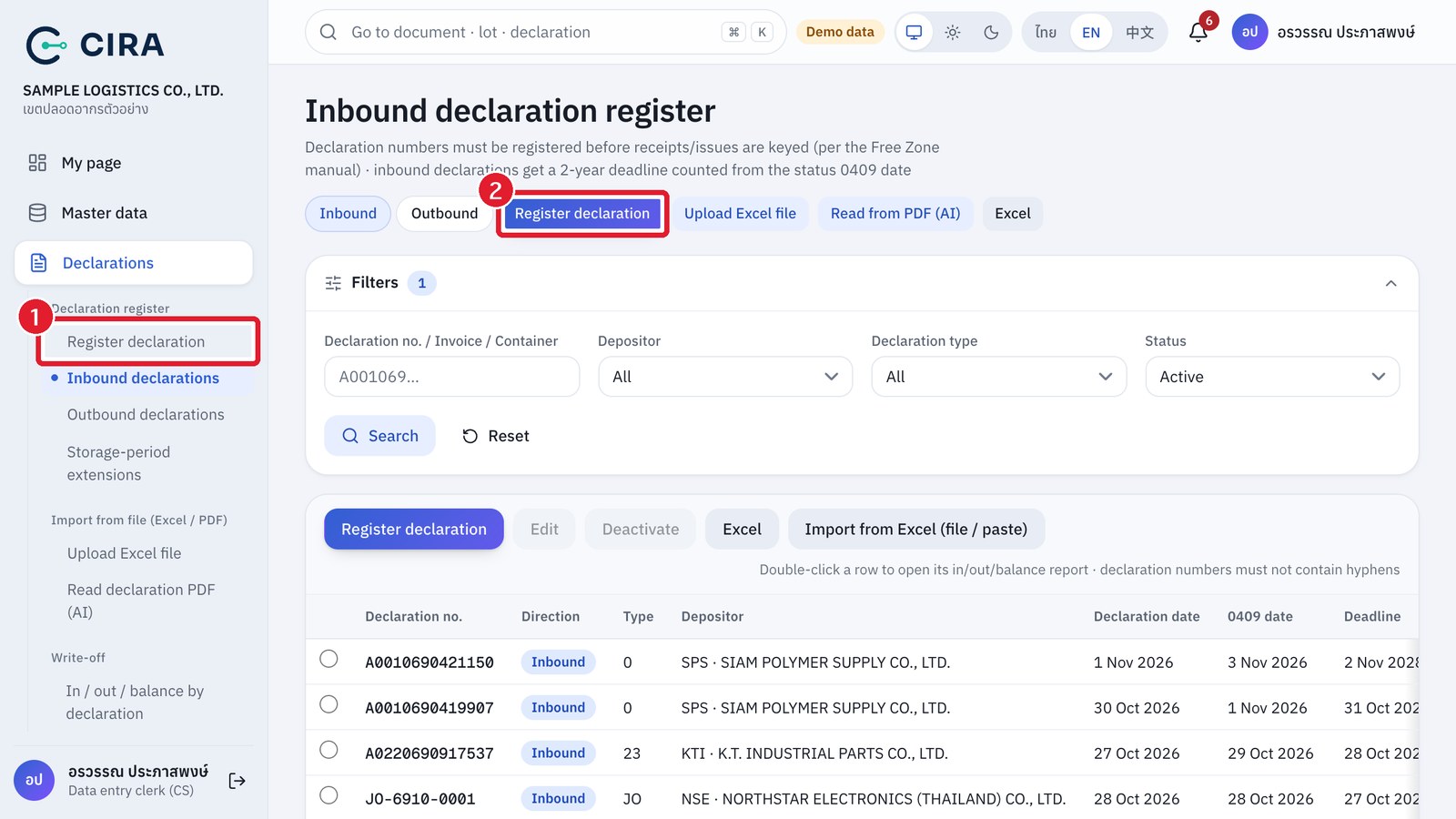
Register declaration
- There are 4 ways in: the Declarations › Register declaration menu · the Register declaration button at the head of the declaration register (first press the Inbound / Outbound switch at the top right) or in the toolbar above the table (F2) · the button on My page · the "register a declaration" link on a goods receipt when the depositor you selected has no declaration yet.
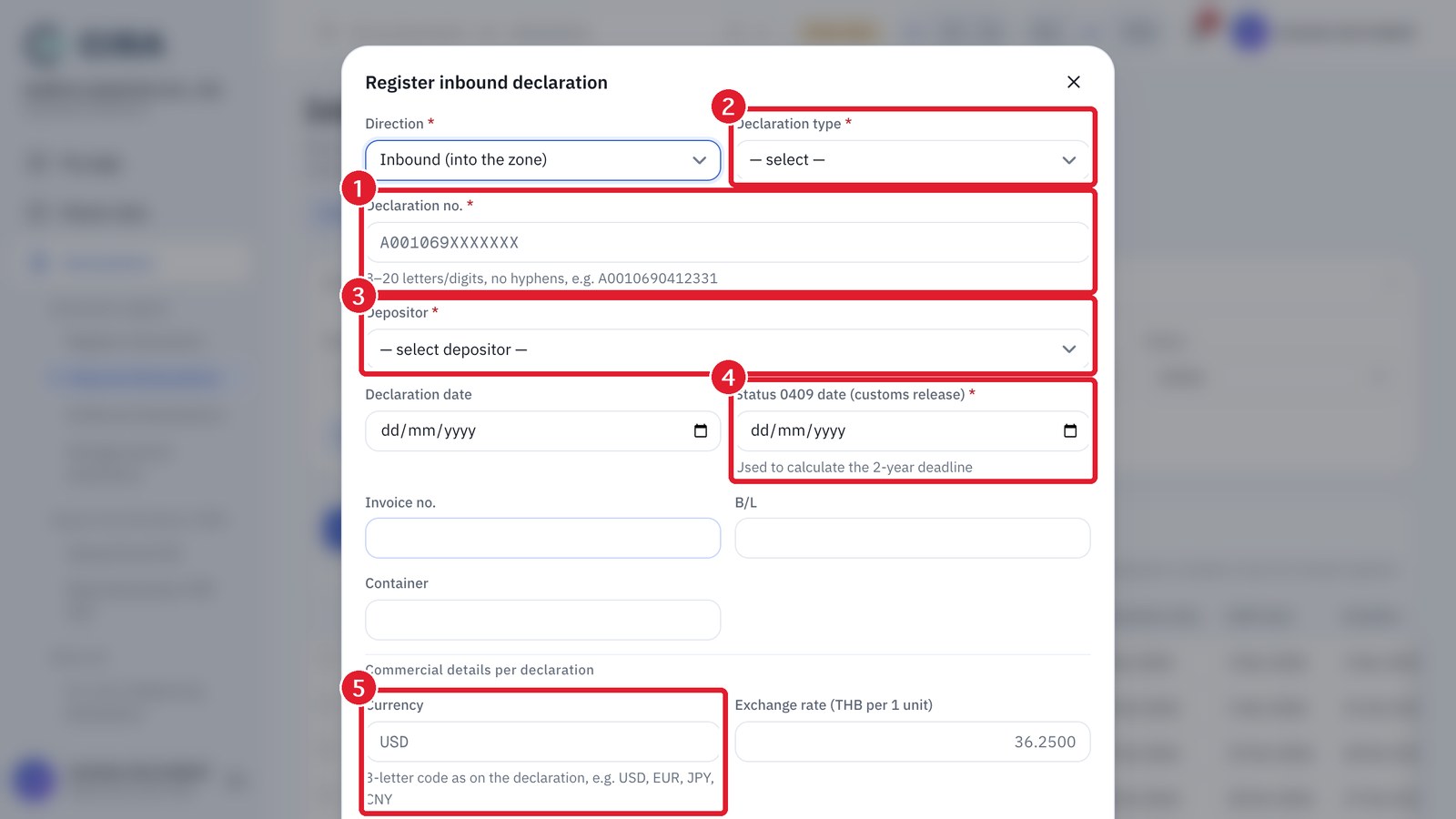
- Fill in the Declaration no. (8–20 letters/digits, no hyphens), Declaration type (0 = import, 20/23 = transfer, and so on), Depositor, Status 0409 date (customs release) (the system works out the "2-year deadline" by itself), and Invoice, B/L and container if any.
- Save (F8). A duplicate number shows "Duplicate: this declaration number already exists. Use another value."
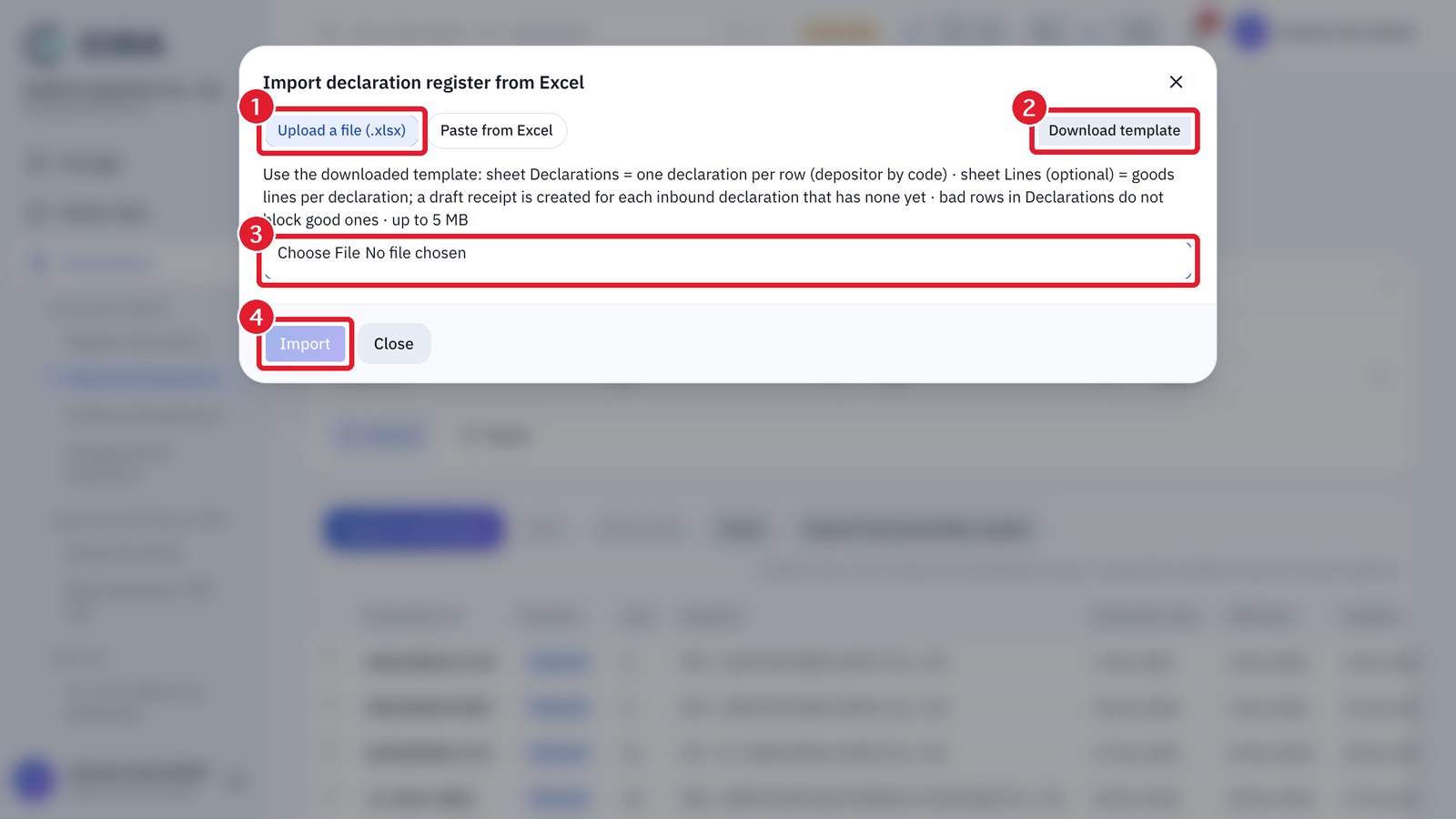
- For several declarations: Upload Excel file (menu Declarations › Upload Excel file, or the button at the head of the register) → Download template → fill in the Declarations sheet (declaration header, 1 row per declaration, depositor given by code) and the Lines sheet (optional: the goods lines of each declaration; the system creates a draft goods receipt for any inbound declaration that has no receipt yet) → choose the file → Import (F8) → results row by row: a bad row does not block the others, and there are links to open the draft receipts created. You can still paste a table from Excel in Paste from Excel mode, or let the system read the declaration PDF (section 1.5).
- To edit a registered declaration, select its row and press Edit. A declaration already referenced on a document cannot have its number, direction or depositor changed (other fields still can). Double-click a row to open its in/out/balance report. When the 0409 date is edited, the deadlines of the declaration and of the lots that use the same deadline move with it. Lots with their own Shelf life (days) keep their date, and a declaration with an approved extension keeps the extended date (section 1.6).
Upload Excel file