Read a declaration from a PDF file with AI/OCR (instead of keying line by line)
The screenshots and data in these docs belong to a sample company (Sample Logistics Co., Ltd.); the depositors, items, documents and numbers are fictitious.
On this page
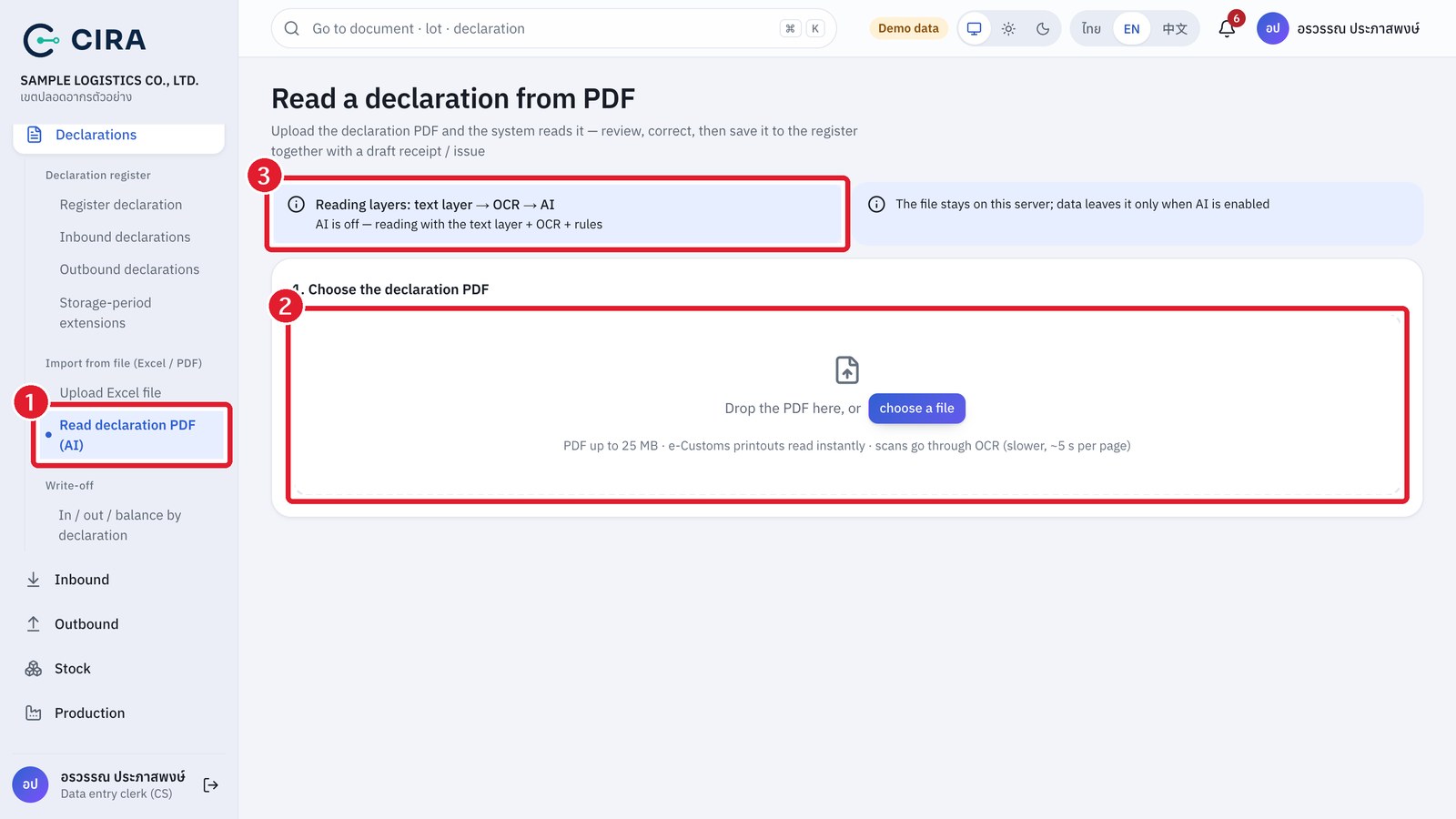
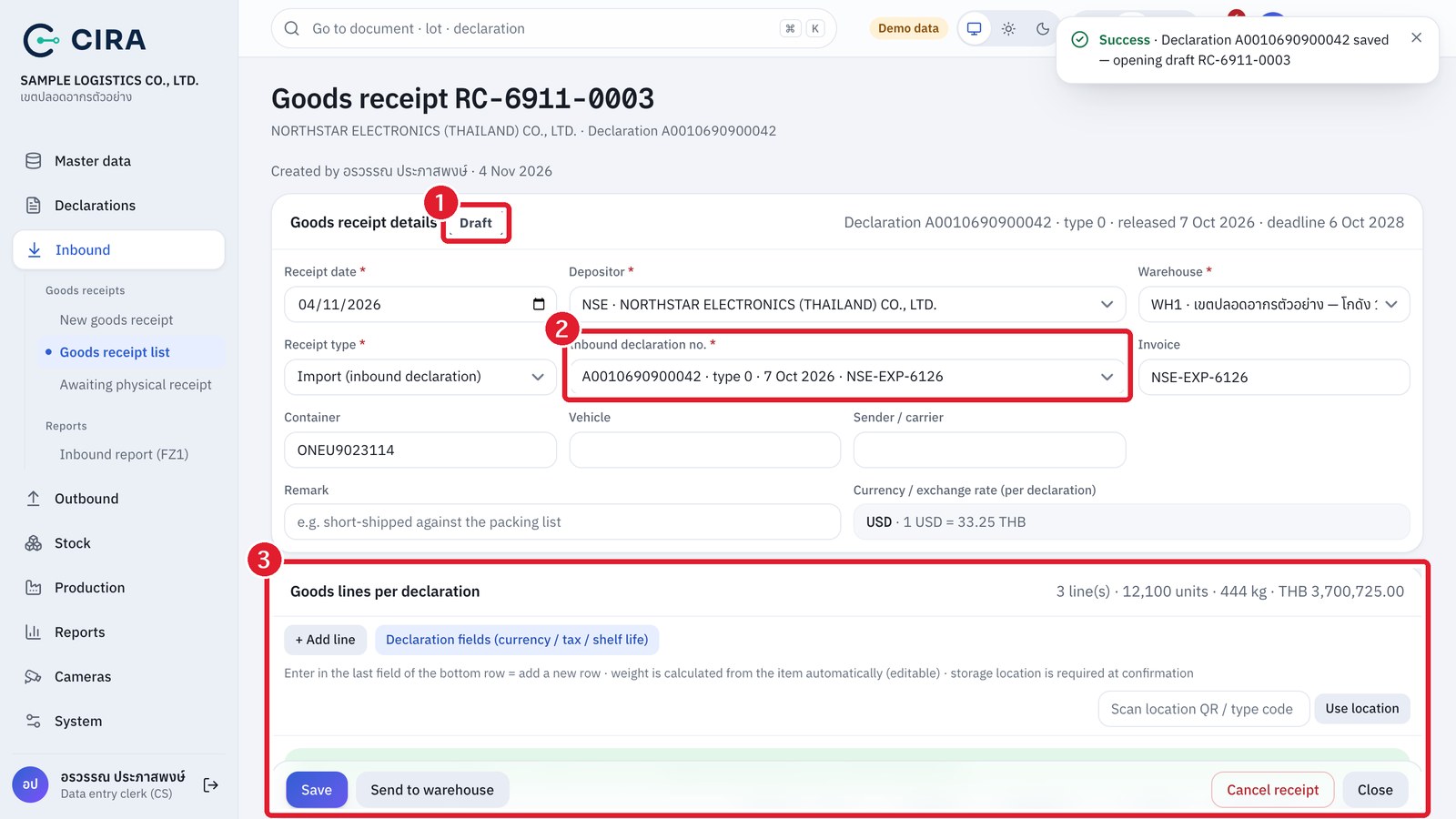
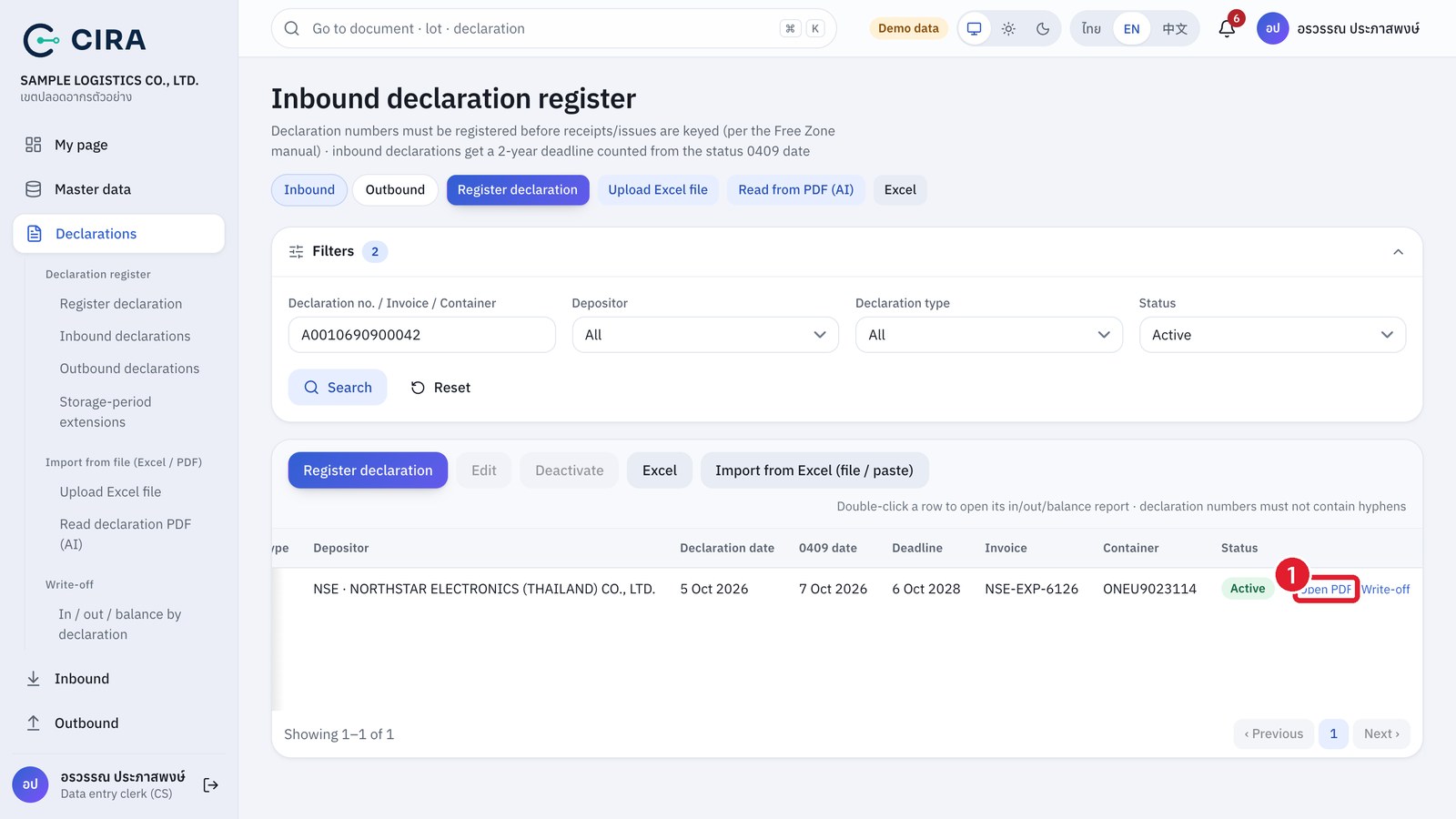
The system reads the customs declaration file (ใบขนสินค้า), either a PDF printed from e-Customs or a scan or photo, and turns it into data for you to check and correct before saving. In one step you get the declaration register entry + the original file attached as evidence + a draft goods receipt (inbound declaration) or a draft goods issue (outbound or transfer declaration). The draft still has to be sent and confirmed as usual (section 1.2, section 2.1), so the system never posts stock directly from a file.
- Declarations › Read declaration PDF (AI) → drop the file in or choose it (PDF up to 25 MB). An e-Customs file is read in 1–2 seconds. A scan goes through OCR at about 5 seconds per page (the first 6 pages are read). If a scan also contains a cover letter or other documents, the system finds the "declaration page" by itself.
- Review the declaration data against the page image on the left (you can move between pages). You can correct any field straight away.
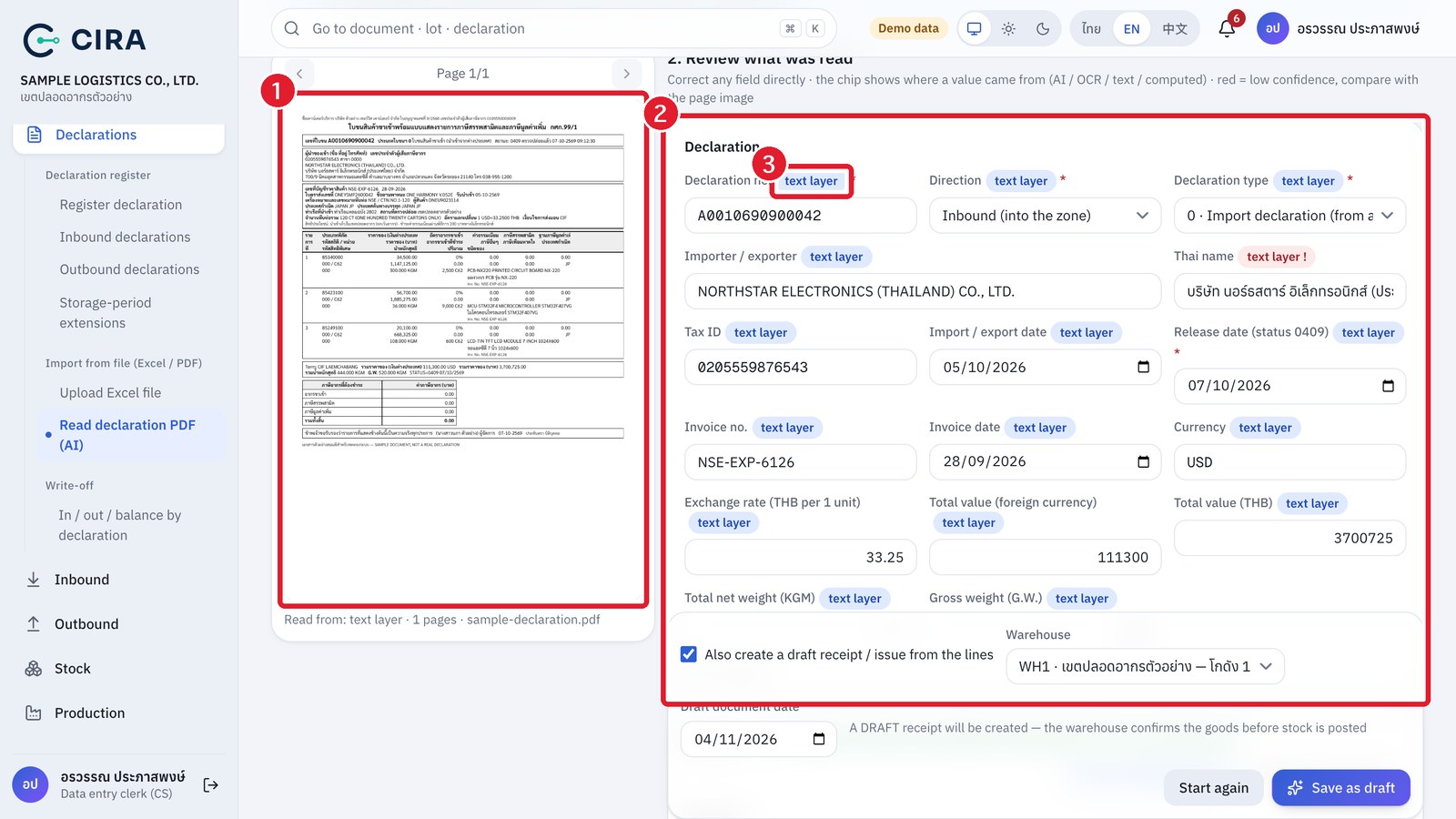
| Chip | Meaning |
|---|---|
| text layer | Read from the text layer of the PDF (e-Customs files) |
| OCR | Read from the image by Thai/English OCR on the server (scanned files) |
| AI | Read by AI (when an administrator has turned it on) |
| computed | Calculated by the system from other values, for example baht value = foreign value × exchange rate |
| Red ! | Low confidence. Compare with the image before saving |
| verified | You have edited this field yourself |
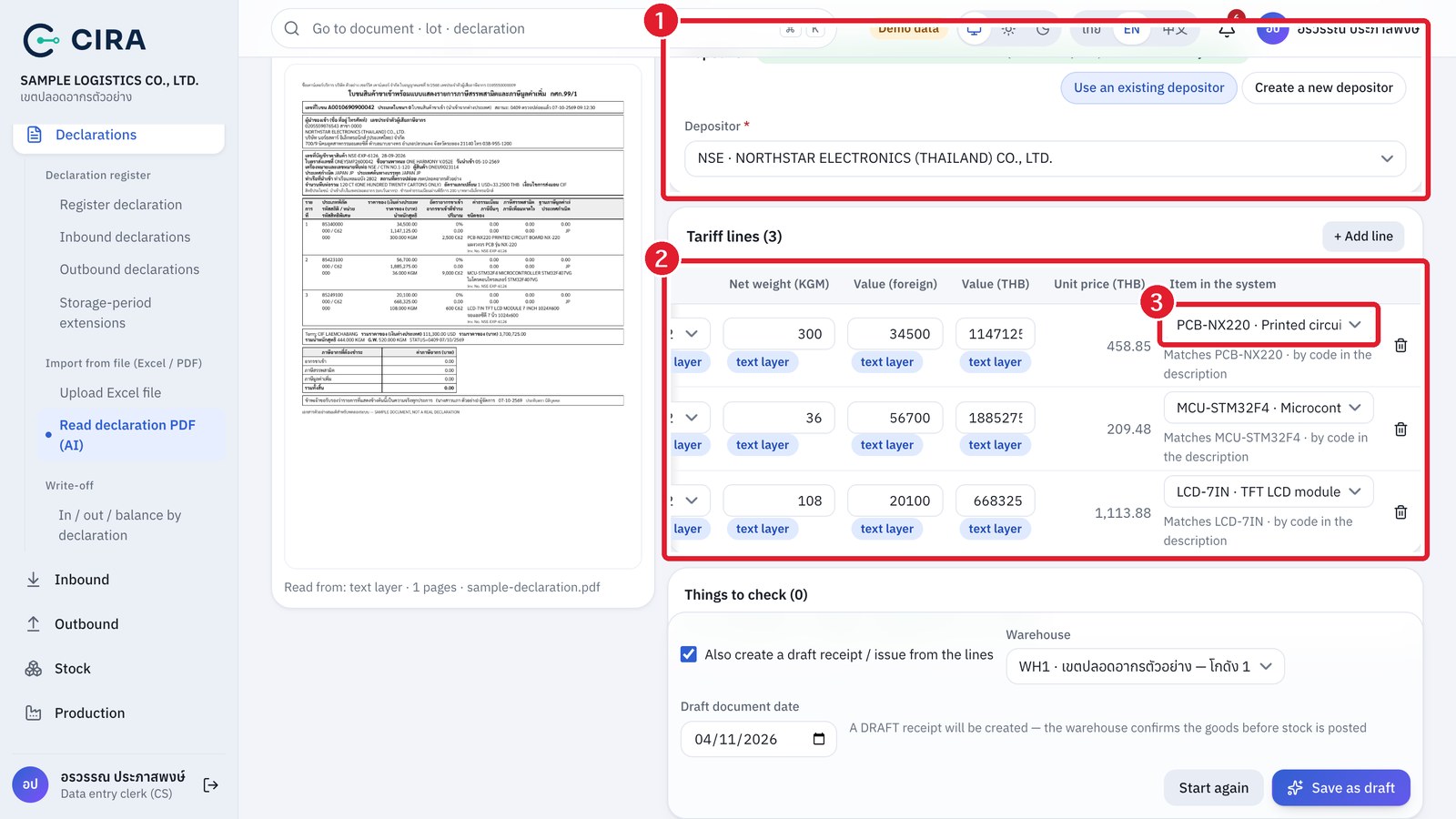
- Depositor / Item / Lot: the system matches these for you. The depositor is matched by tax ID (exact) or name (≥ 80% similar); if none is found it offers "Create a new depositor" with the code, name and tax ID filled in. Each item is matched by the code in the description, by HS code + name, or by name; if none is found it offers "+ create new item" (with a code proposed from the description). Outbound and transfer declarations have a Lot to write off column, taken from "referenced declaration … line …" on the declaration (if none is found, it proposes one by FIFO).
- Read Things to check at the bottom of the page, then tick Also create a draft receipt / issue from the lines (on by default), and choose the warehouse and document date → Save as draft (F8). The system creates the register entry, attaches the PDF and opens the new draft straight away. If you do not want a draft, remove the tick and only the declaration register entry is saved. Start again discards the result so you can upload another file.
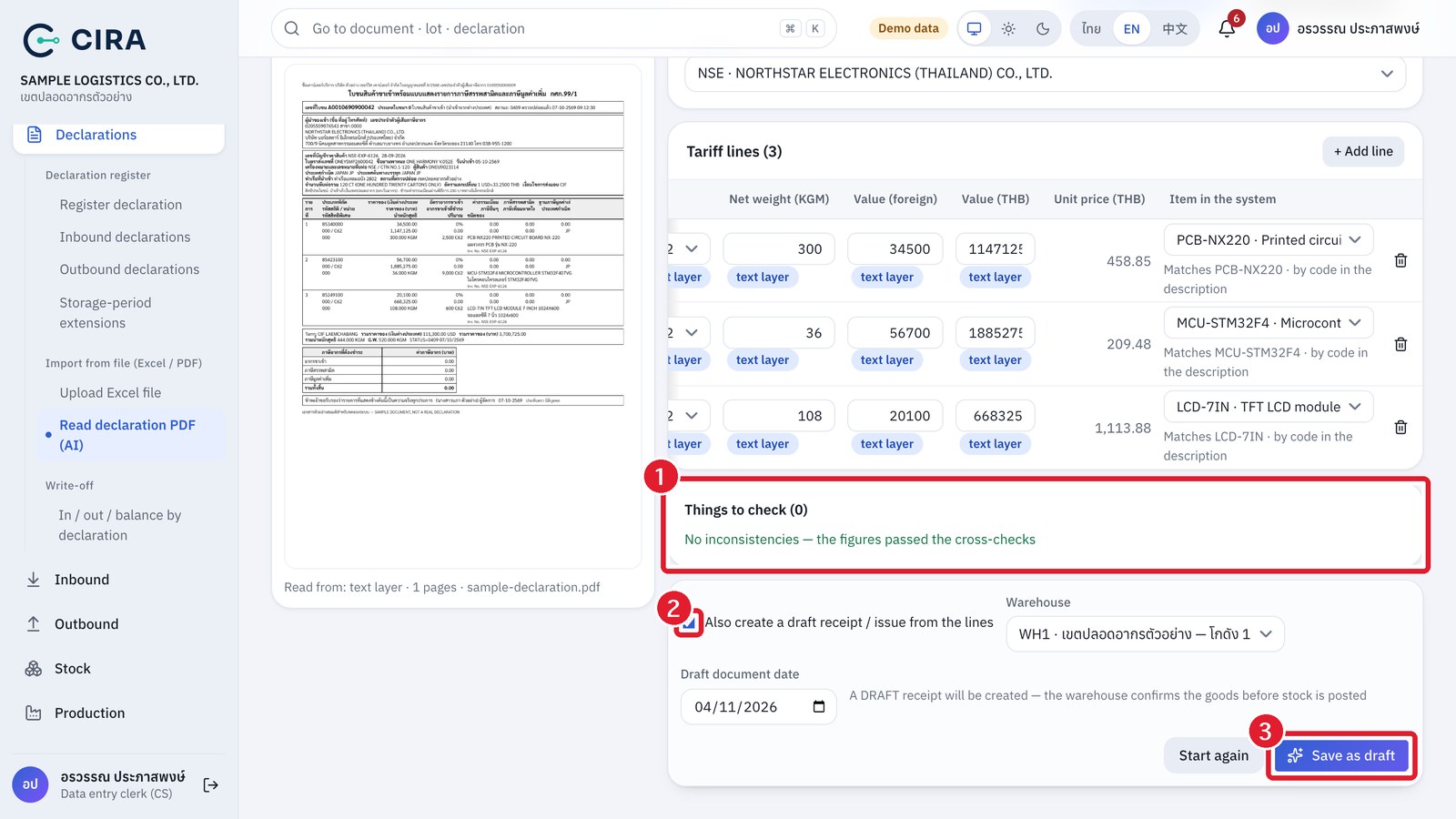
What the system checks for you: foreign value × exchange rate ≈ baht value (within 0.5%; if only one side can be read, it calculates the other and marks it with the "computed" chip) · Σ line weights = total net weight (if only one line is wrong and it is a single misread digit, such as 45,000 ↔ 15,000, the system corrects it and warns you; if it cannot tell which, it only warns and does not guess) · Σ baht values and Σ foreign values against the totals · consecutive line numbers · an outbound declaration must have a referenced declaration · units and declaration numbers misread by OCR (062 → C62, a leading 6 → A) are repaired with a warning · Buddhist Era dates are converted to the Common Era.
- The system does not guess the 0409 release date. For an inbound declaration you must enter it yourself if it is not printed on the form (it is used to calculate the 2-year deadline).
- Thai OCR can misread vowels and tone marks, so always check Thai names and descriptions. When an administrator turns on AI, Thai names and descriptions are far more accurate, and values that the AI and the rules read the same get high confidence.
- A draft goods issue for an outbound or transfer declaration can be created once a lot has been chosen for every line (stock of the referenced inbound declaration must be in the system).
- Every save leaves "Read declaration from PDF" and "Attach declaration file" entries on the history page (section 3.4). Files uploaded but not saved are deleted automatically within 1 day.
- Privacy: the text layer and OCR run on our server and no data leaves the machine. Only when an administrator sets up AI is the declaration file sent to the Anthropic API for reading (use this on real documents once the depositor has given consent).