Confirm physical receipt
The screenshots and data in these docs belong to a sample company (Sample Logistics Co., Ltd.); the depositors, items, documents and numbers are fictitious.
On this page
Physical receipt check
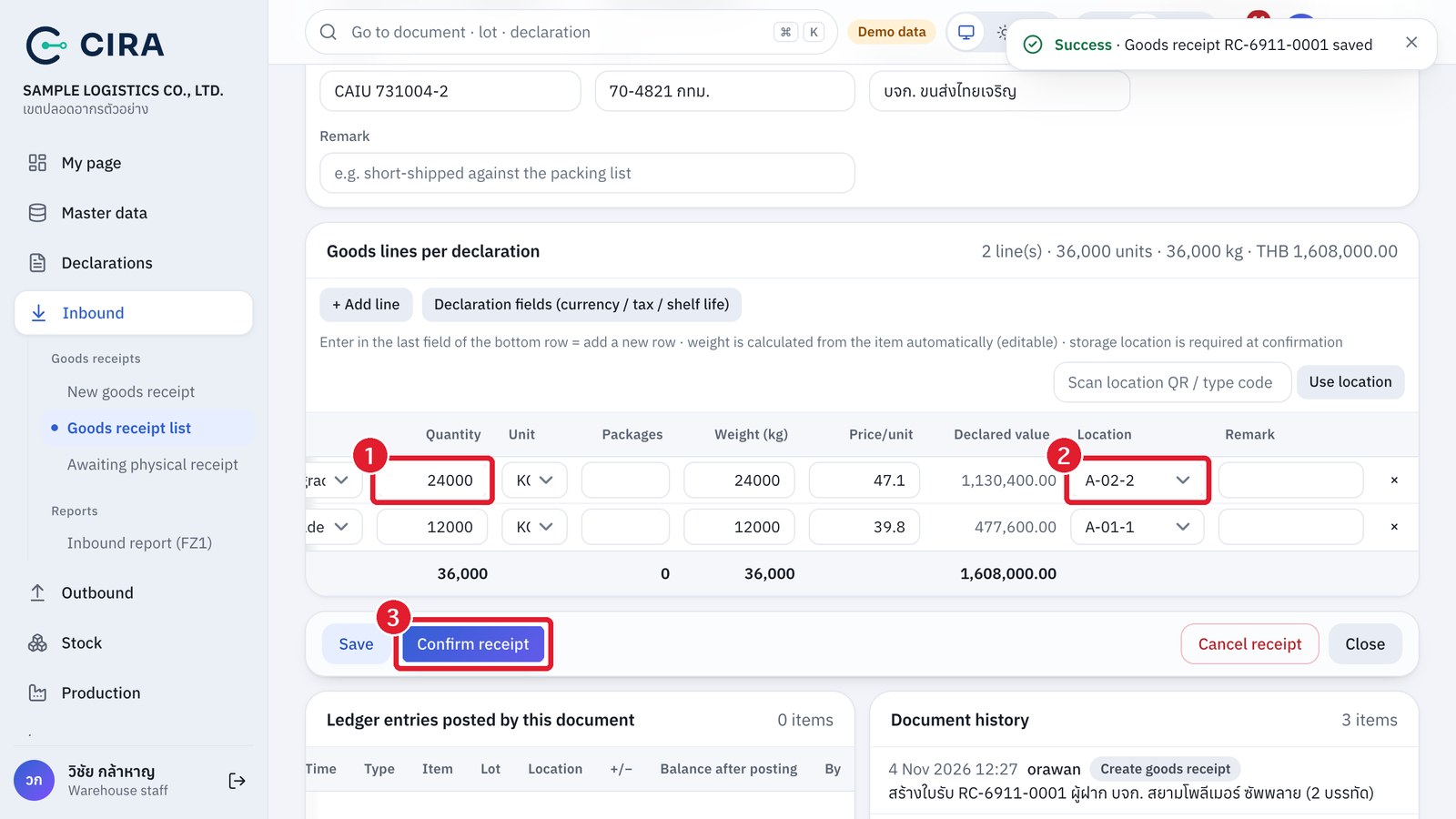
- Dashboard › Goods receipts awaiting physical receipt (or Inbound › Awaiting physical receipt) → open the receipt.
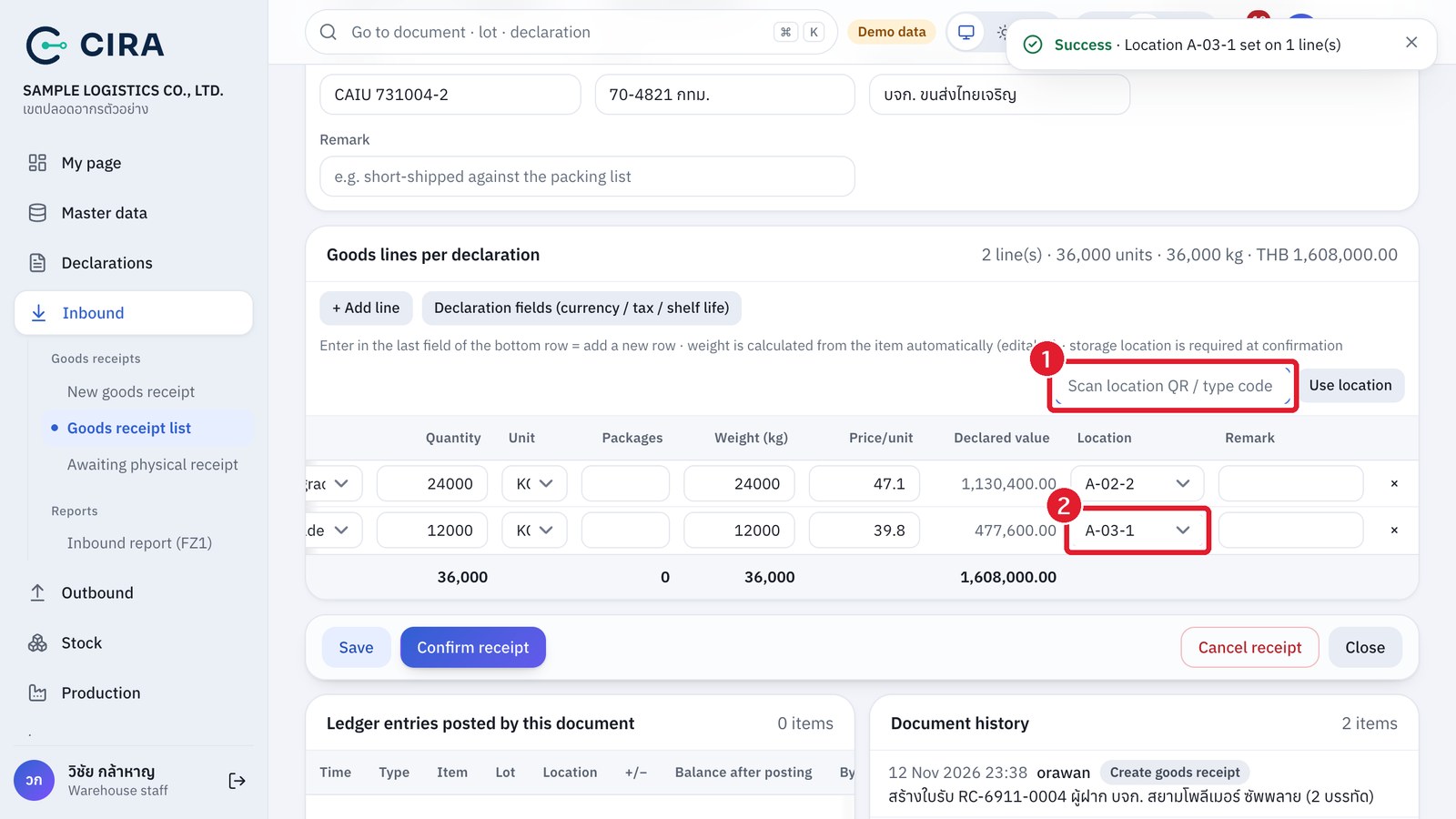
- Check the goods that arrived: you can correct the Quantity to what really arrived, enter a location on every line (required) and enter the actual weight. You can scan the location QR label in the "Scan location QR / type code" box above the table: the system puts that location on every line that is still empty (if every line already has a location, it changes the last line). If you scan a location of another warehouse or a code that does not exist, the system warns you and changes nothing.
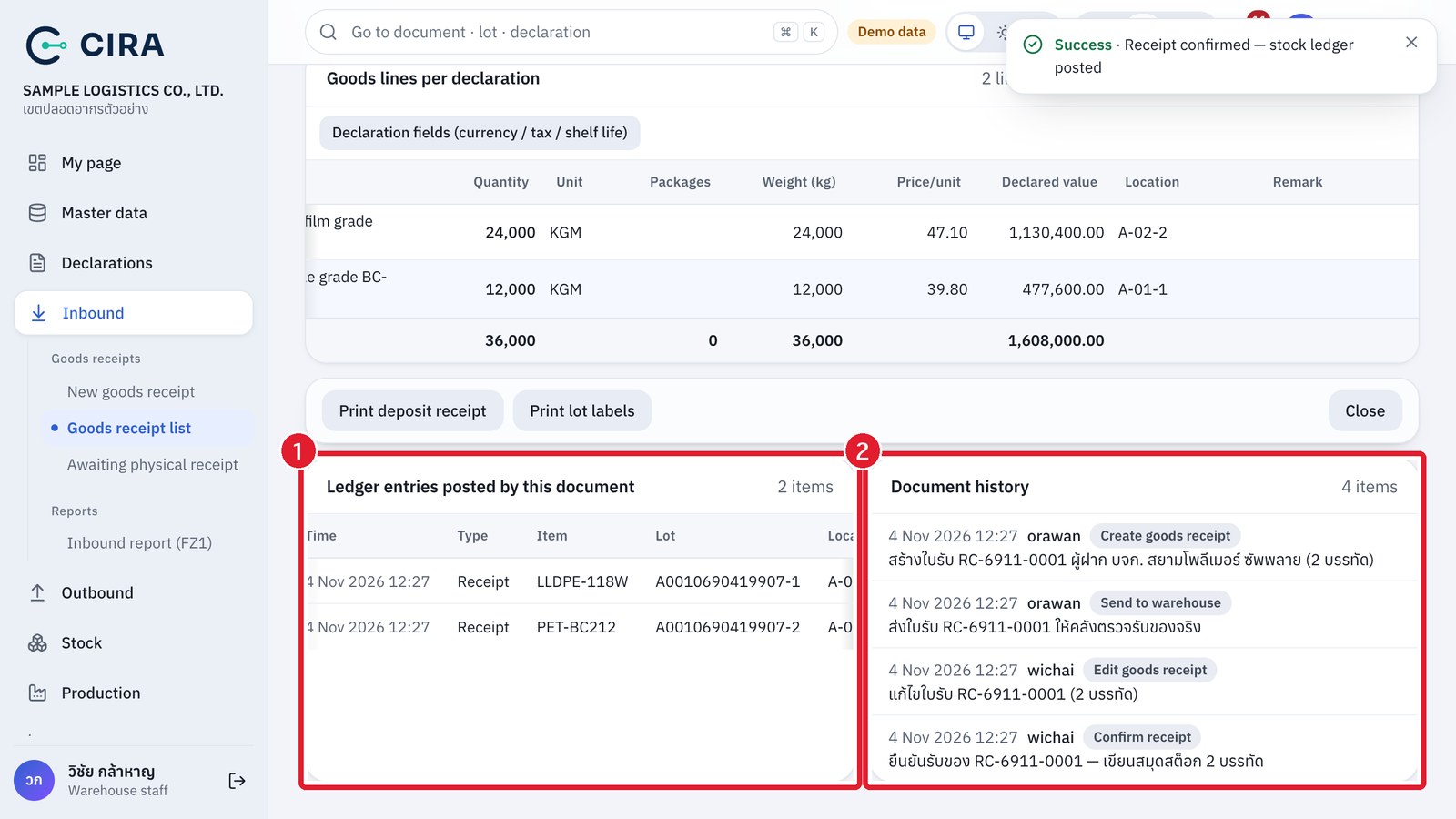
- Save (F8) if you changed anything, then press Confirm receipt → read the dialog (the system will create the lot "declaration number-line number" and write to the stock ledger) → F8.
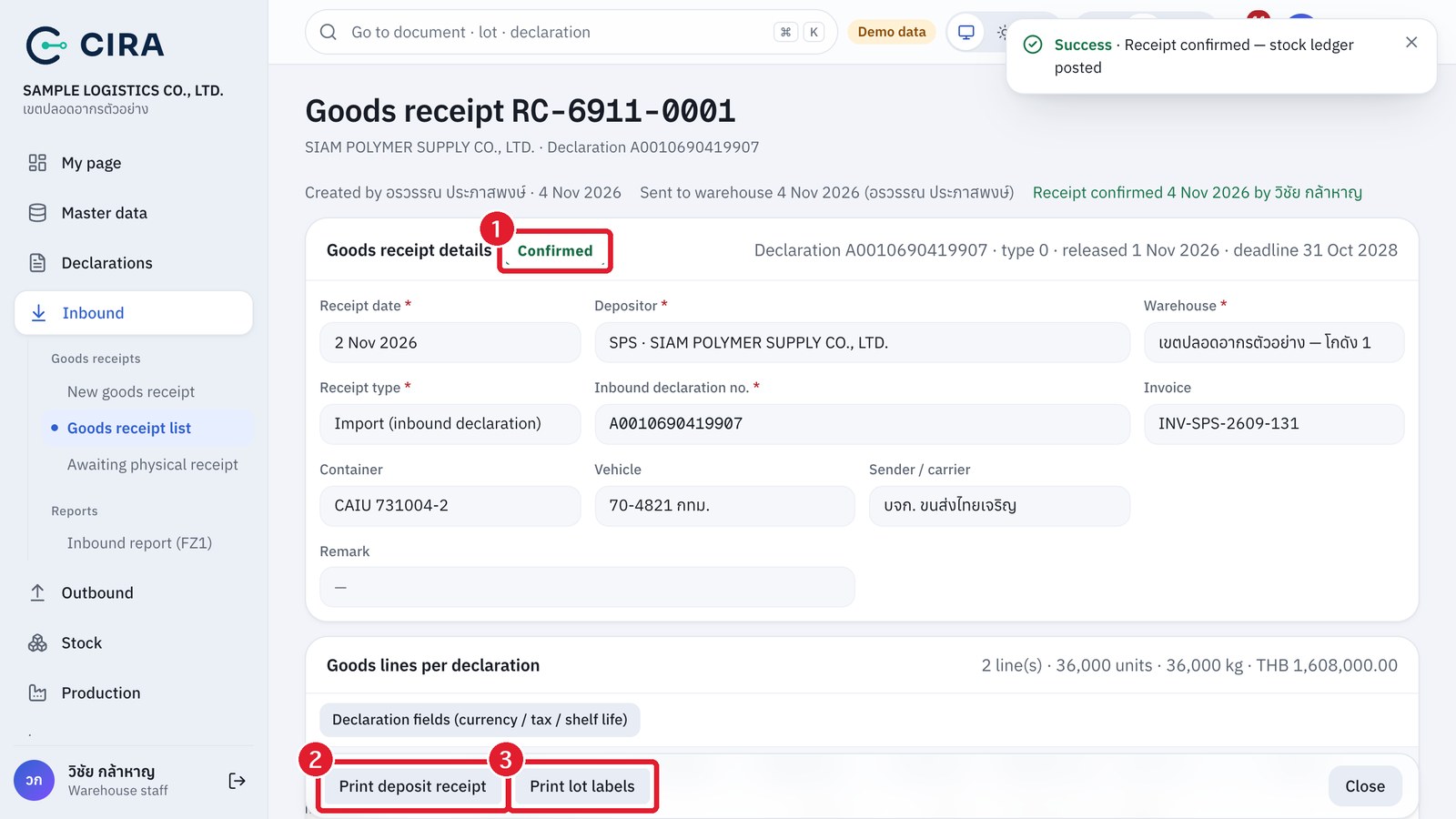
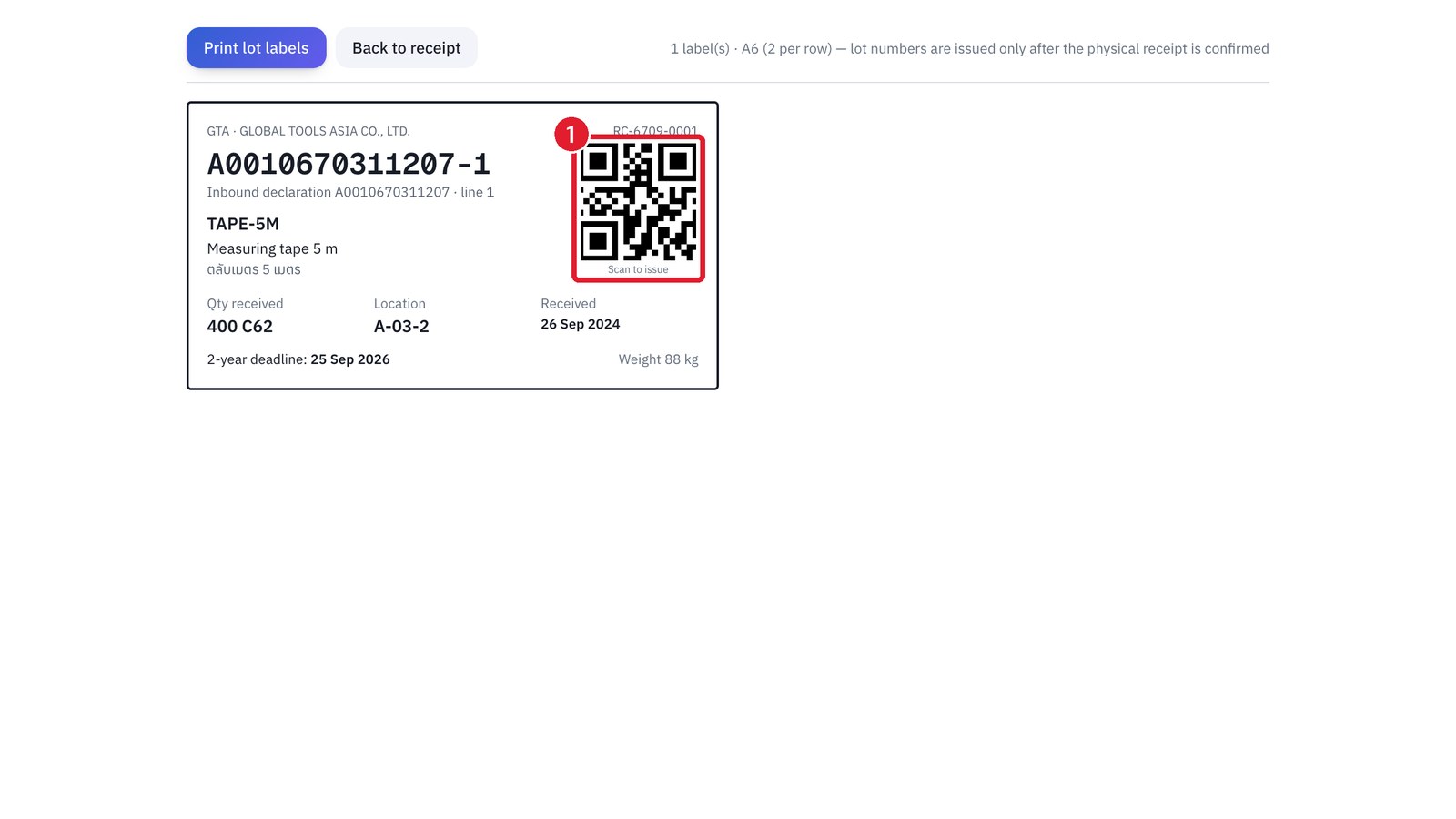
- Status "Confirmed" → the Print deposit receipt and Print lot labels buttons (A6, to stick on the pallet).
Confirmed goods receipt
Lot labels
Stock ledger of the document
Scanning a storage location on a receipt
- Goods do not arrive as arranged: Cancel receipt (with a reason). If the declaration has been deactivated, the system will not let you confirm: tell CS to check the declaration register.