Main screen
The screenshots and data in these docs belong to a sample company (Sample Logistics Co., Ltd.); the depositors, items, documents and numbers are fictitious.
Dashboard
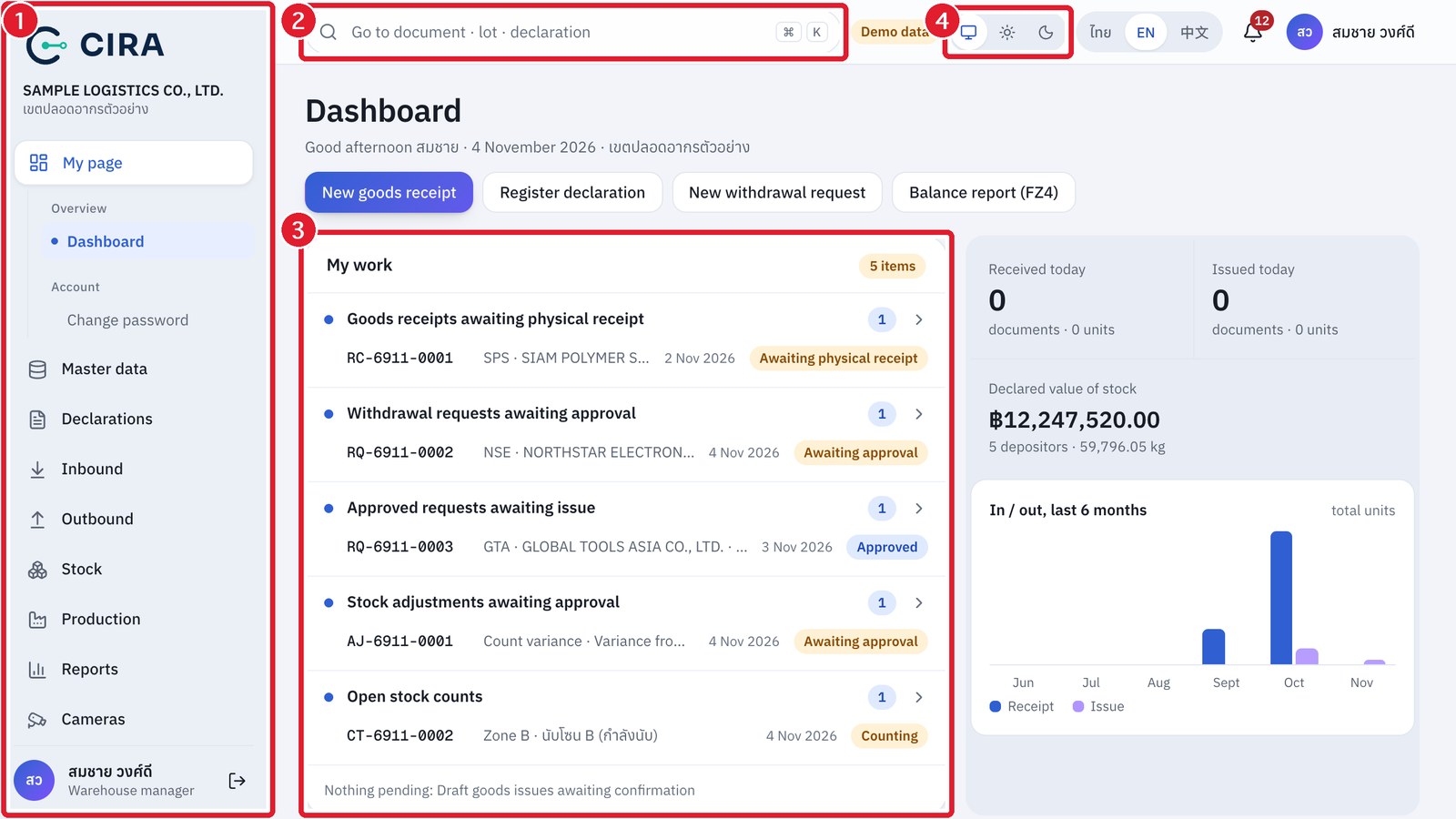
- Left menu rail (desktop) / bottom tab bar + ≡ button (phone): My page · Master data · Declarations · Inbound · Outbound · Stock · Production · Reports · Cameras · System. You see only the menus your role can use (the Production menu shows only when the production module is on, section 4.3).
- Search box at the top (⌘K or /): type a document number (RC-6910-0004), declaration number (A0010690421150), lot number or item code, then press Enter. You jump straight to that page.
- My work: the queue of documents waiting for you, largest count first. Click a document number to open it.
- Action buttons are always at the top: every list and report page has a toolbar (Create · Edit · Import · Excel · Print) above the table and below the filter panel, so you do not have to scroll down. On a document page, the save, send and confirm buttons sit in a bar at the bottom of the screen that always stays in view.
- The yellow "Demo data" badge means the system is using sample data (an administrator can turn it off at System › Settings).