Key a goods receipt and send it to the warehouse
The screenshots and data in these docs belong to a sample company (Sample Logistics Co., Ltd.); the depositors, items, documents and numbers are fictitious.
On this page
New goods receipt
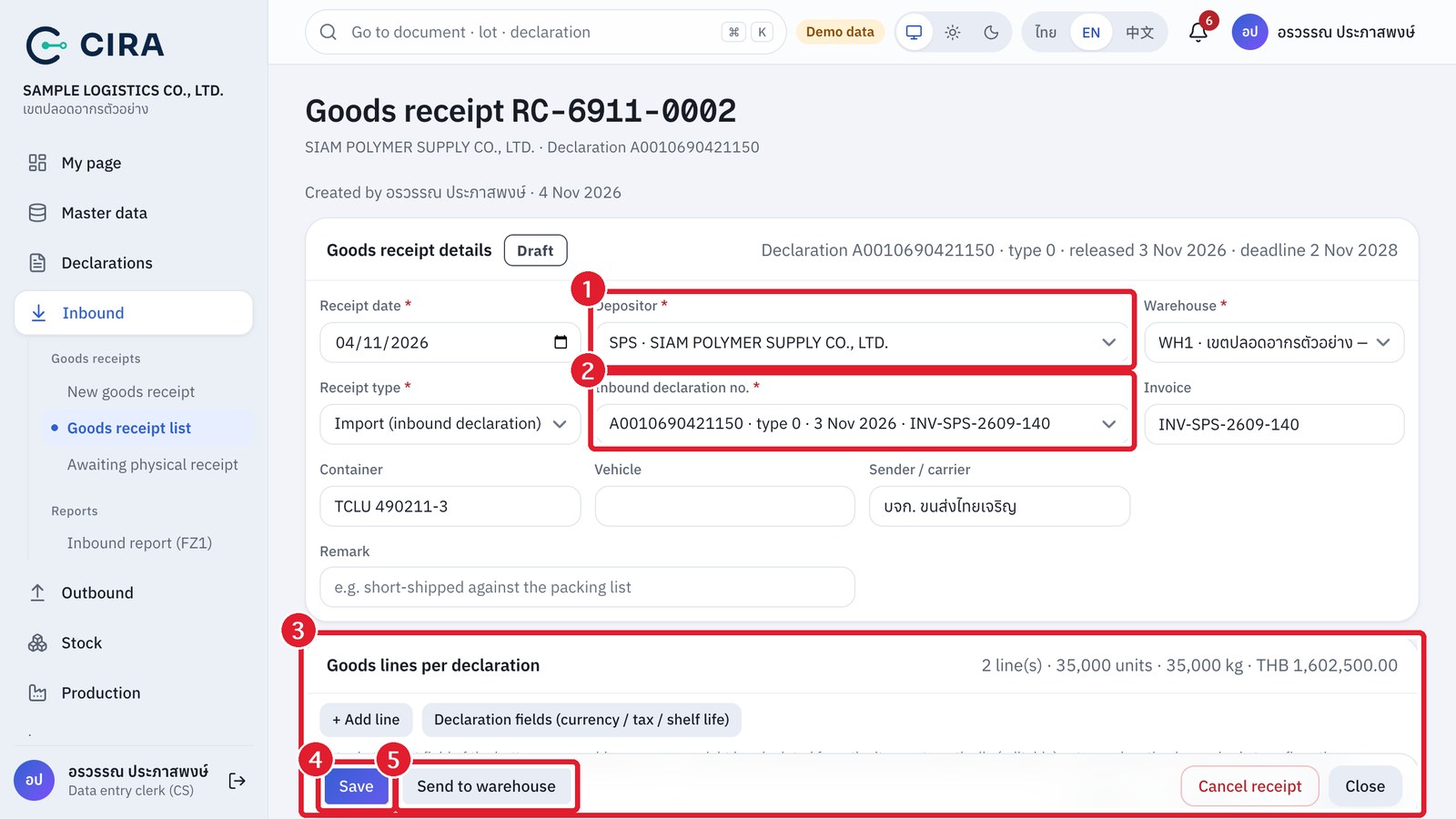
- Inbound › New goods receipt (or F2 in the list).
- Select the Depositor first. The Inbound declaration and Item lists then show only that depositor's entries.
- Fill in the lines from the packing list: Line no. in declaration (= the line number on the declaration, used to form the lot number), Item, Quantity, Unit (set automatically from the item), Packages, Weight, Price/unit (up to 6 decimal places; the value is rounded to 2 places), Location (can be set later; the warehouse must fill in all of them before confirming).
- Save (F8). You get a number RC-YYMM-#### (YY = the last two digits of the Buddhist year, so 6910 means October 2026), status "Draft" (still editable).
- After checking, press Send to warehouse → confirm in the dialog (F8) → status "Awaiting physical receipt". CS can no longer edit it (if it must change, have the warehouse edit that receipt, or press "Cancel receipt" and key it again).
- Goods short or wrong: put it in the Remark, "e.g. short-shipped against the packing list". You can cancel a receipt while it is a draft or awaiting receipt (a reason is required).
Declaration fields
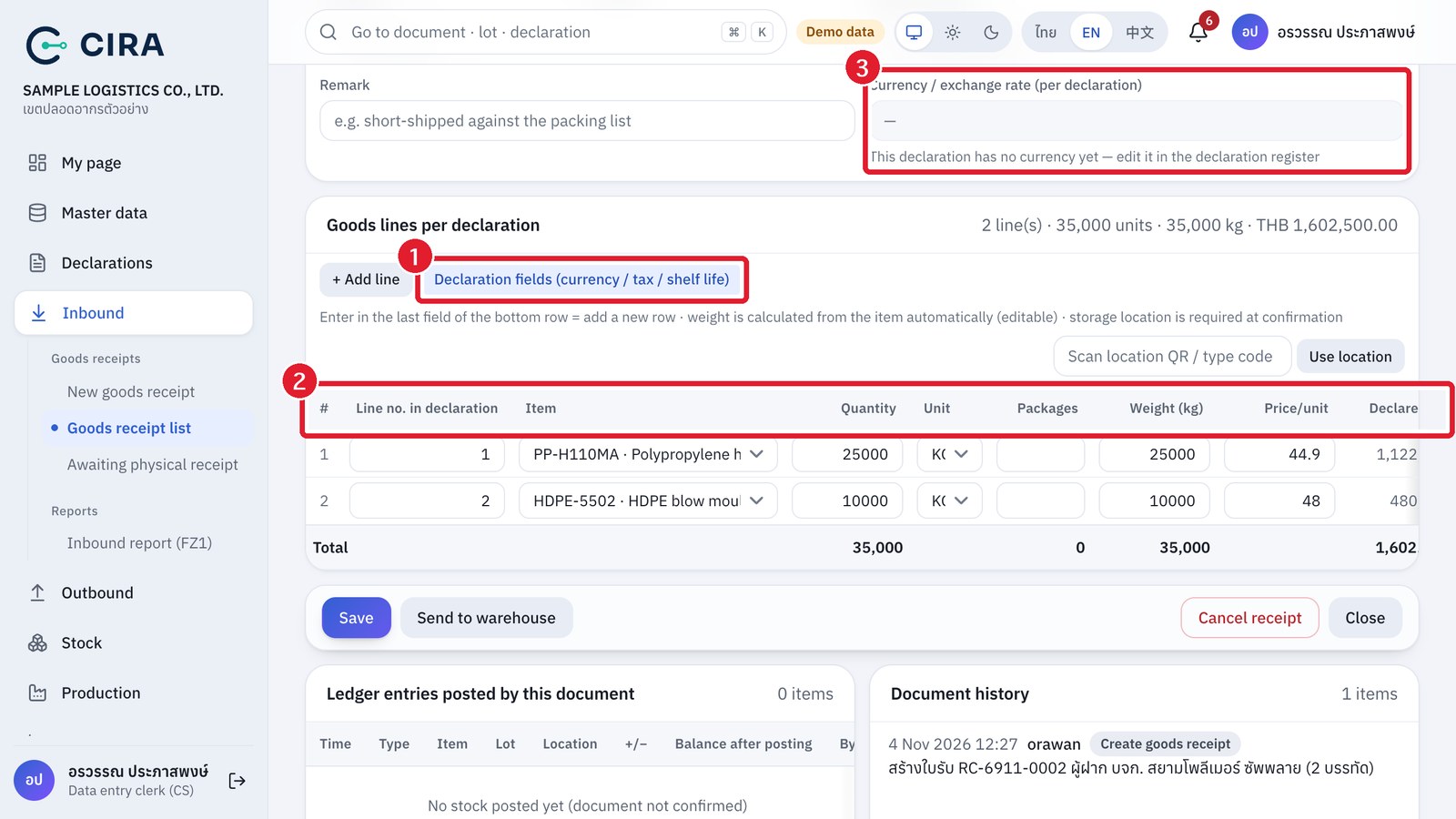
- Shelf life (days): if set, the lot created when the receipt is confirmed falls due on the receipt date + that number of days, instead of the declaration's 2-year deadline (for goods that last less than 2 years). Fields left blank are not saved as 0 and do not affect the Declared value (THB) used in customs reports.
- You can read the declaration from a PDF file instead of keying it (see section 1.5).