Master data
The screenshots and data in these docs belong to a sample company (Sample Logistics Co., Ltd.); the depositors, items, documents and numbers are fictitious.
Items
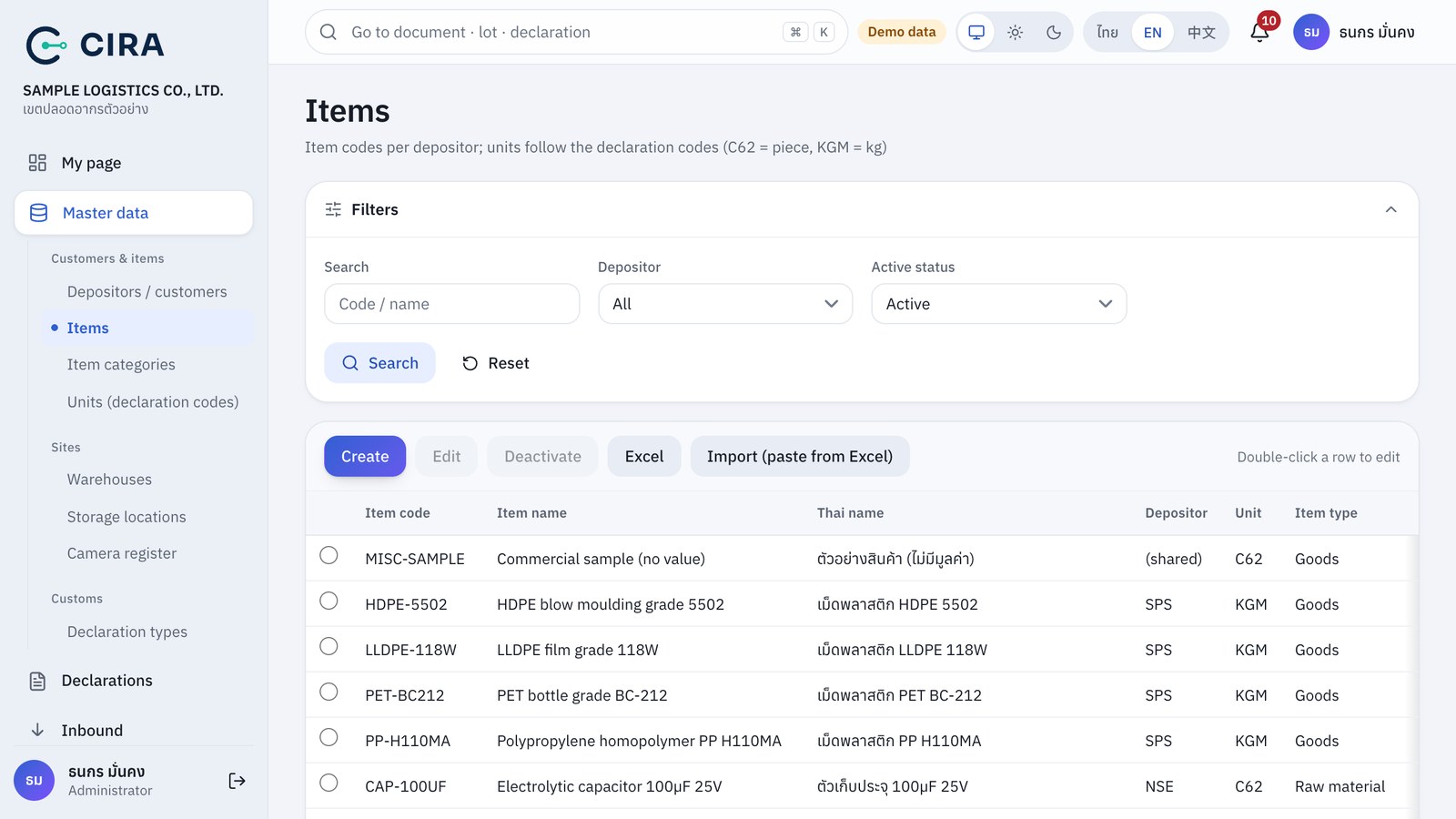
- Master data › Depositors / customers · Items · Item categories · Units (declaration codes) · Warehouses · Storage locations · Camera register · Declaration types — Create (F2), double-click a row to edit, Deactivate (nothing is deleted, the history stays), Excel to export, Import (paste from Excel).
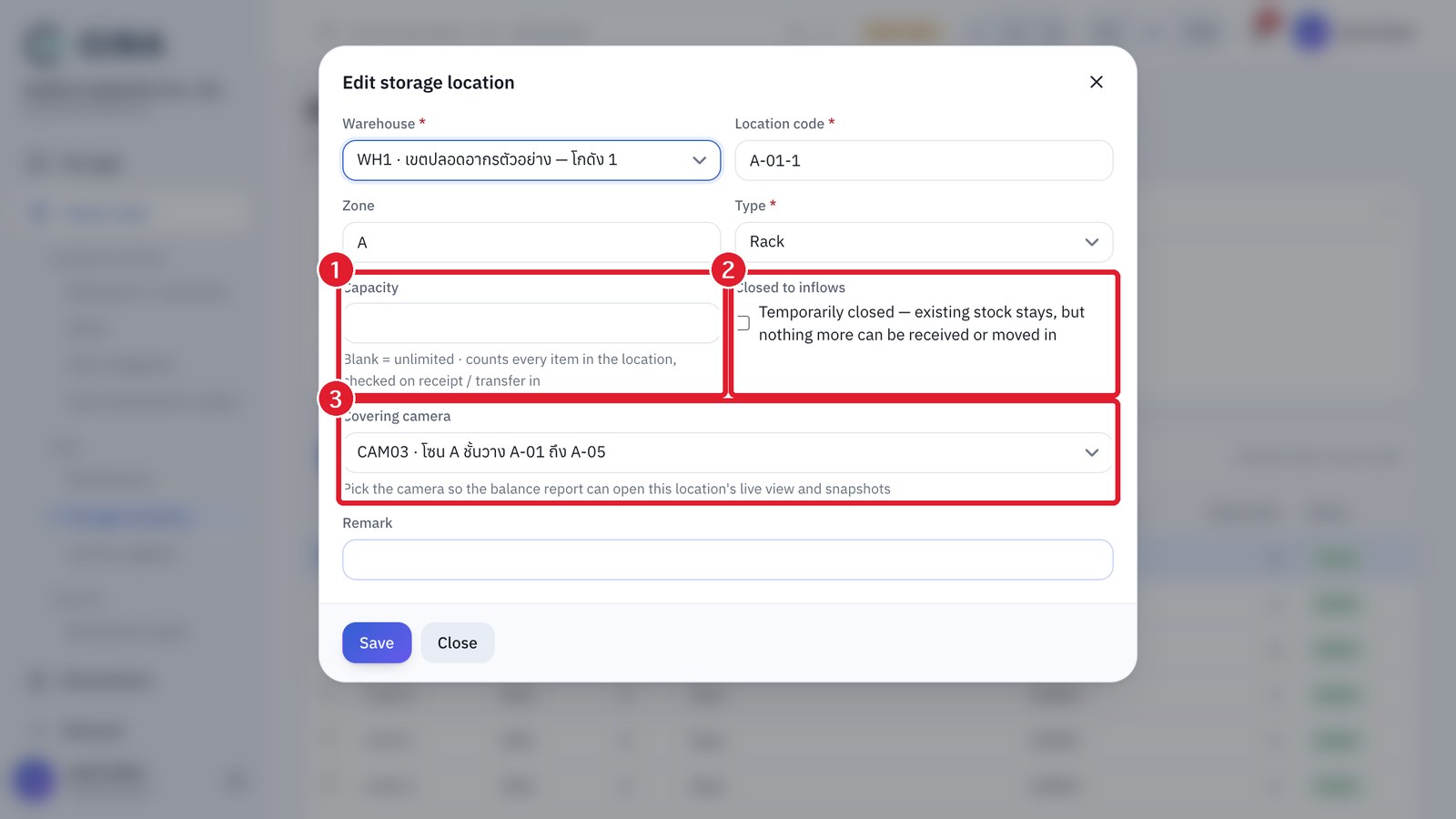
- Camera register: code, name / installation point, type (Gate / Storage area), feed type and feed address. Then go to Storage locations and choose a "Covering camera" for each location, so that you can press "View camera / View snapshot" in the balance report (see section 8).
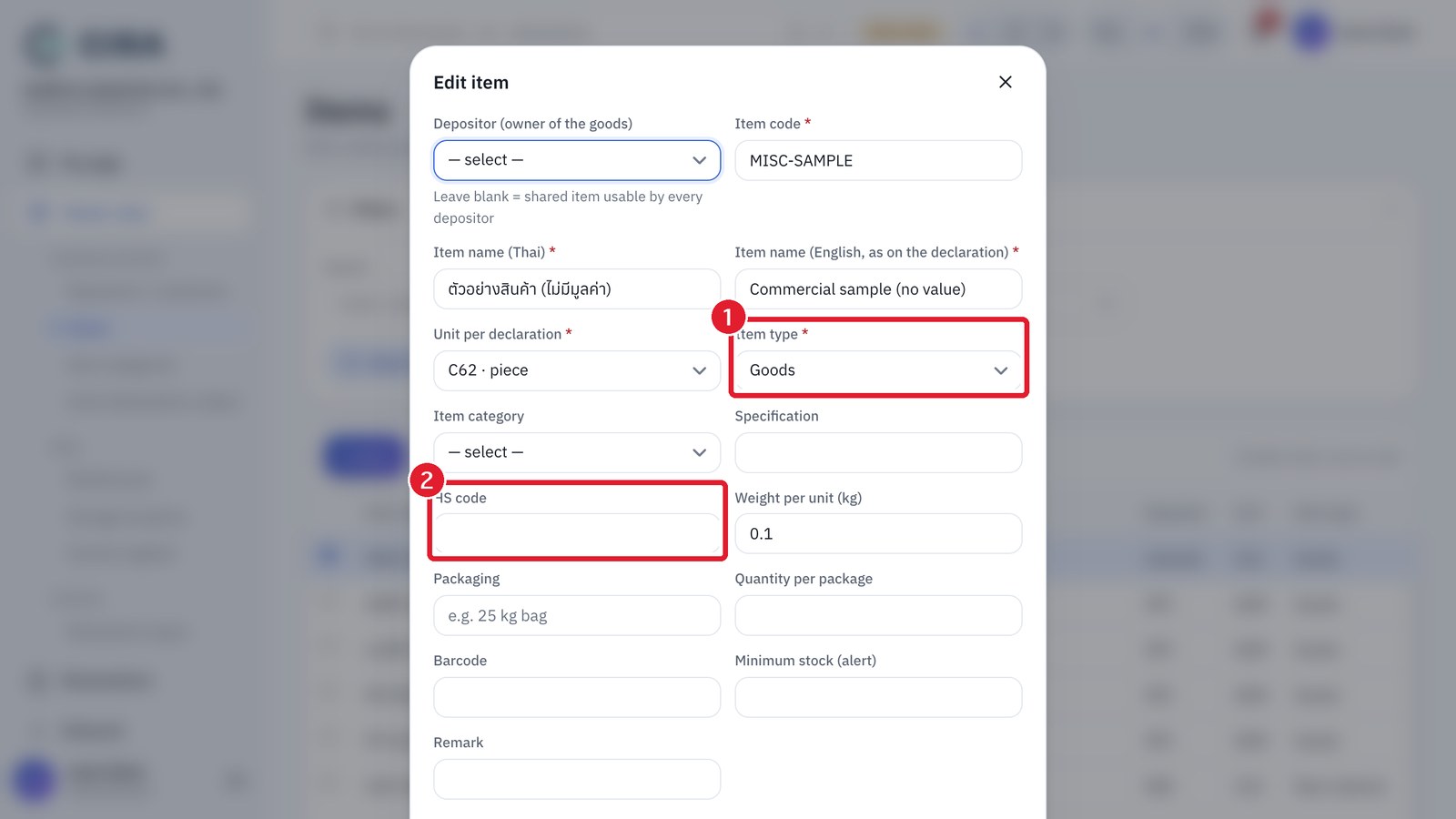
- An item belongs to a depositor (the same code may exist under different depositors) and must have a Unit per declaration (C62 = piece, KGM = kg) and an Item type (Goods / Raw material / Sub-material / Machinery / Finished goods / Semi-finished / For destruction / Consumables — used to filter reports and to separate the raw-material and finished-goods reports). An item that already has lots cannot change its unit or its owning depositor.
- A tax ID must have 13 digits, and codes must not repeat.
- Storage locations: set a Capacity (blank = unlimited), and tick Closed to inflows for a temporary stop. The system checks at every receipt, transfer in and production receipt; goods already there can still be issued as usual. The Work in process (WIP) type is for production (section 9). A location with movement history cannot be moved to another warehouse.
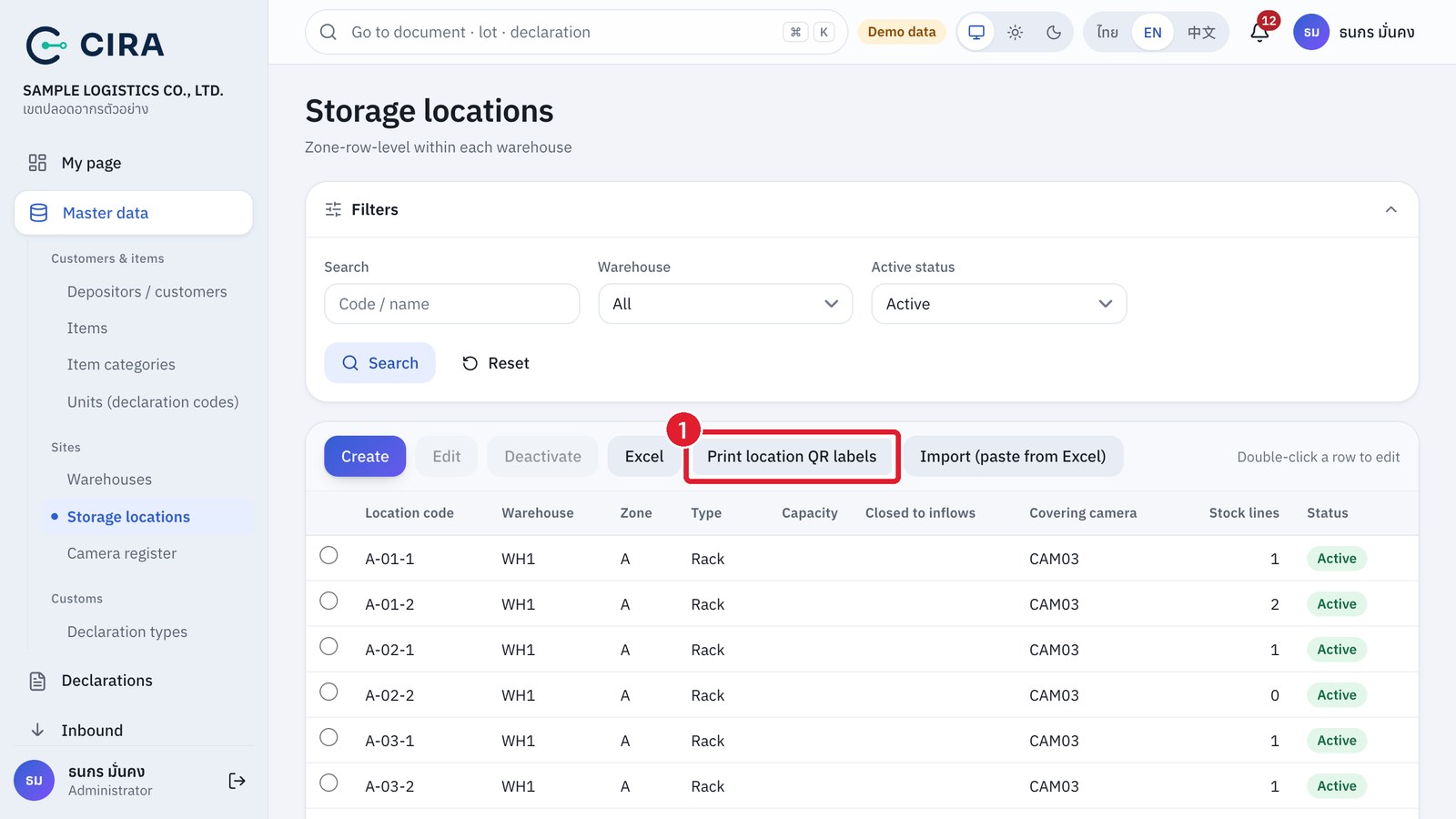
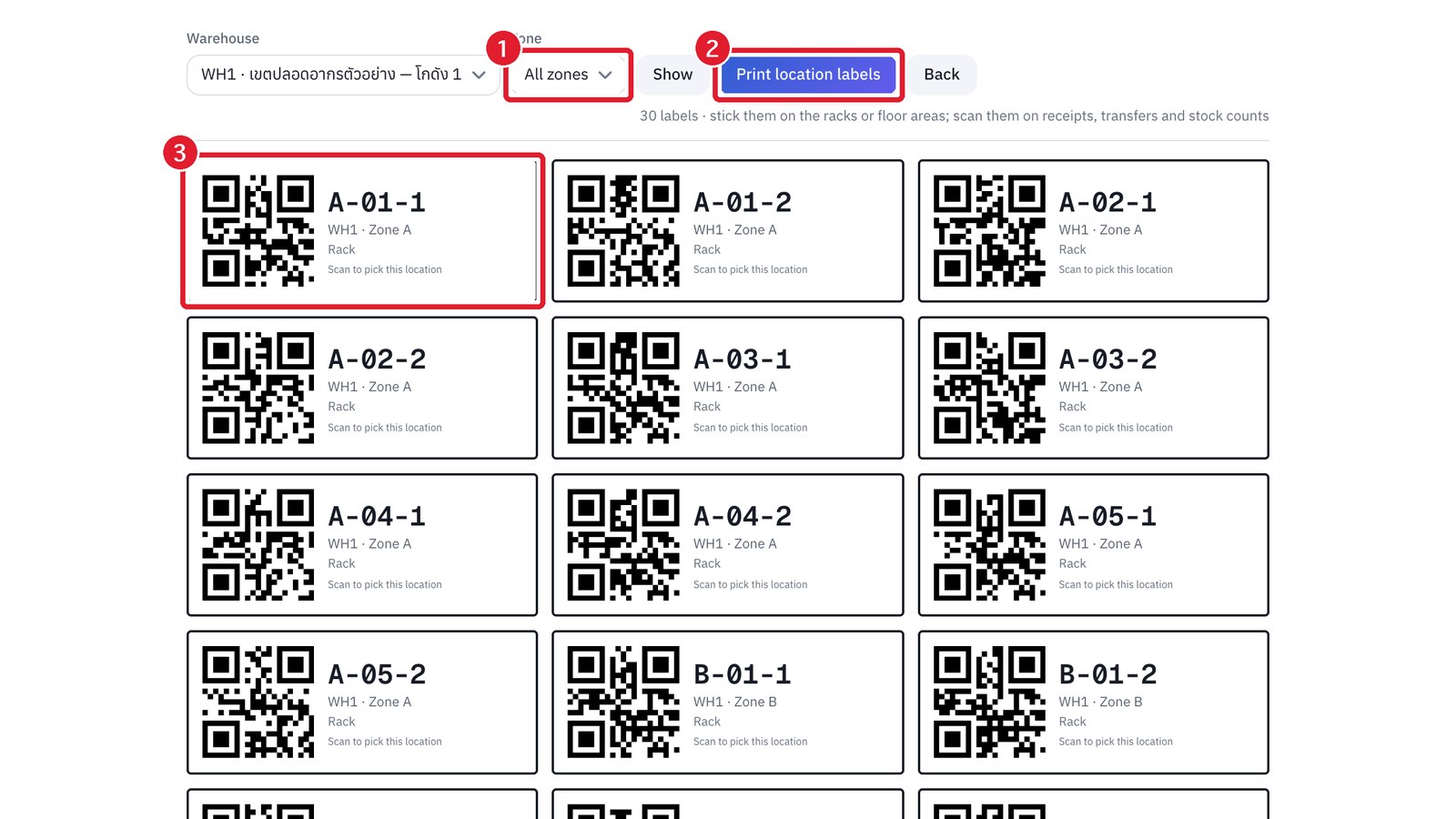
- Storage-location QR labels: the Print location QR labels button on the Storage locations page (or on the Location map page) prints labels for every location in a warehouse, and you can choose a single zone. The QR holds the text
LOC/warehouse code/location code, for exampleLOC/WH1/A-01-1. Stick it on the rack or storage area, then scan it on the receipt, transfer and stock count pages (section 2.1, section 2.3, section 2.4). Customs Notification 189/2564 requires a barcode or QR on both the goods and the storage location: goods use the lot label, locations use this label.
Print location QR labels button
Storage-location QR labels
Storage location
Item