CCTV cameras and snapshots (all roles · uploaded by warehouse staff and managers)
The screenshots and data in these docs belong to a sample company (Sample Logistics Co., Ltd.); the depositors, items, documents and numbers are fictitious.
CCTV cameras
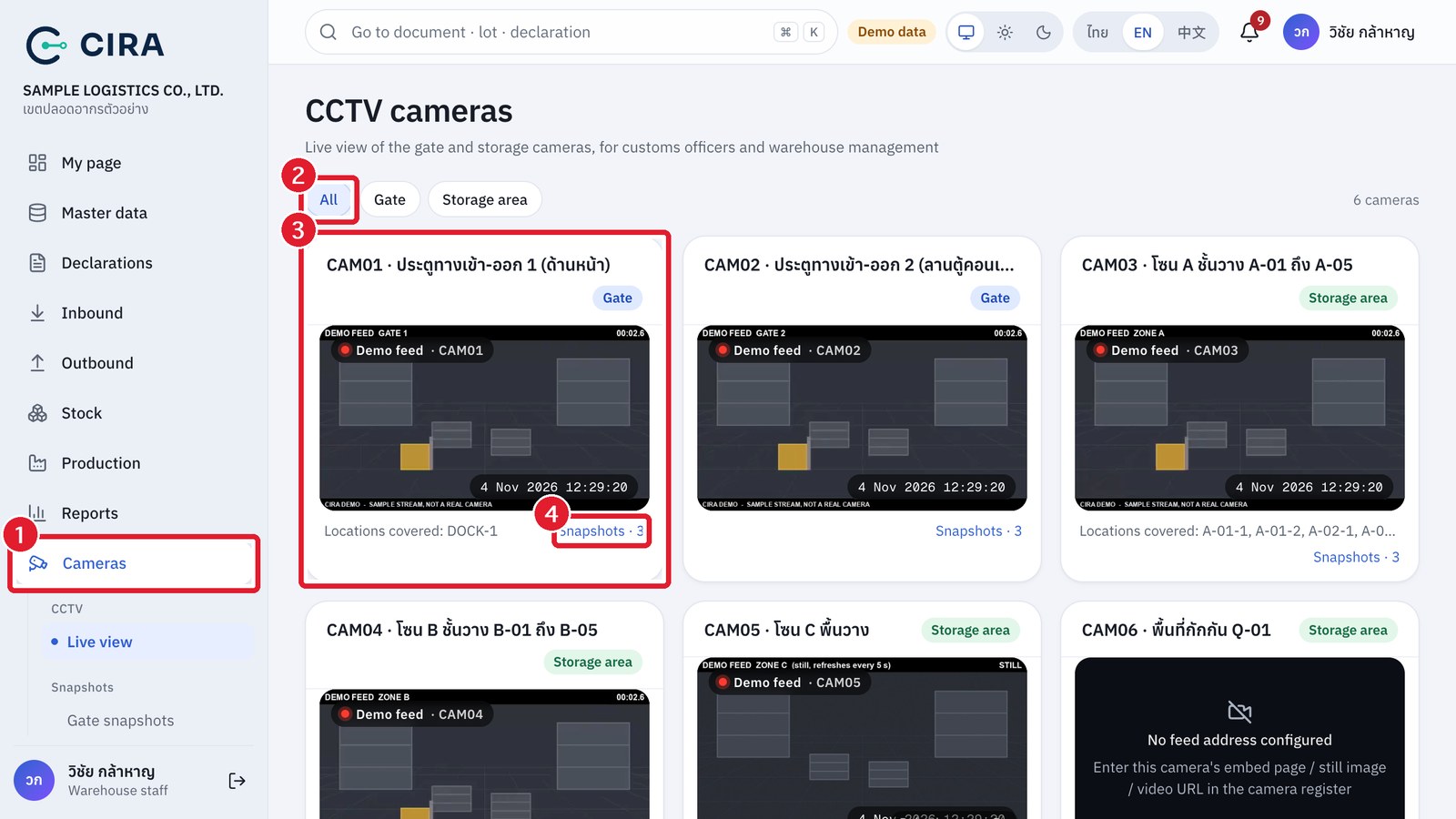
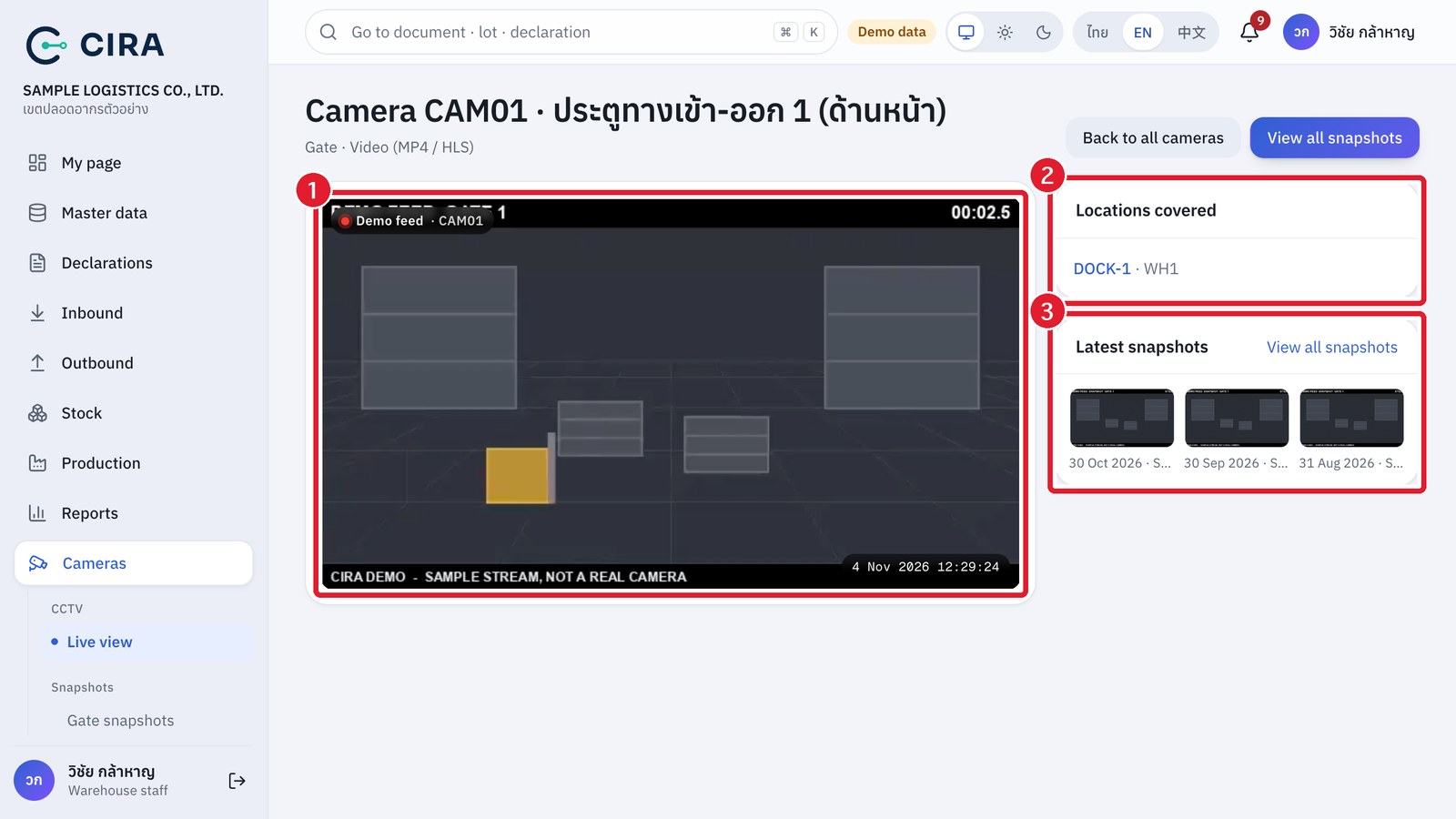
- Live view: every camera in the register shows as a tile with its code, the current time and the storage locations it covers. Press a picture to open the single-camera page (large picture, locations covered → press to see the stock at that location, latest snapshots, backup link).
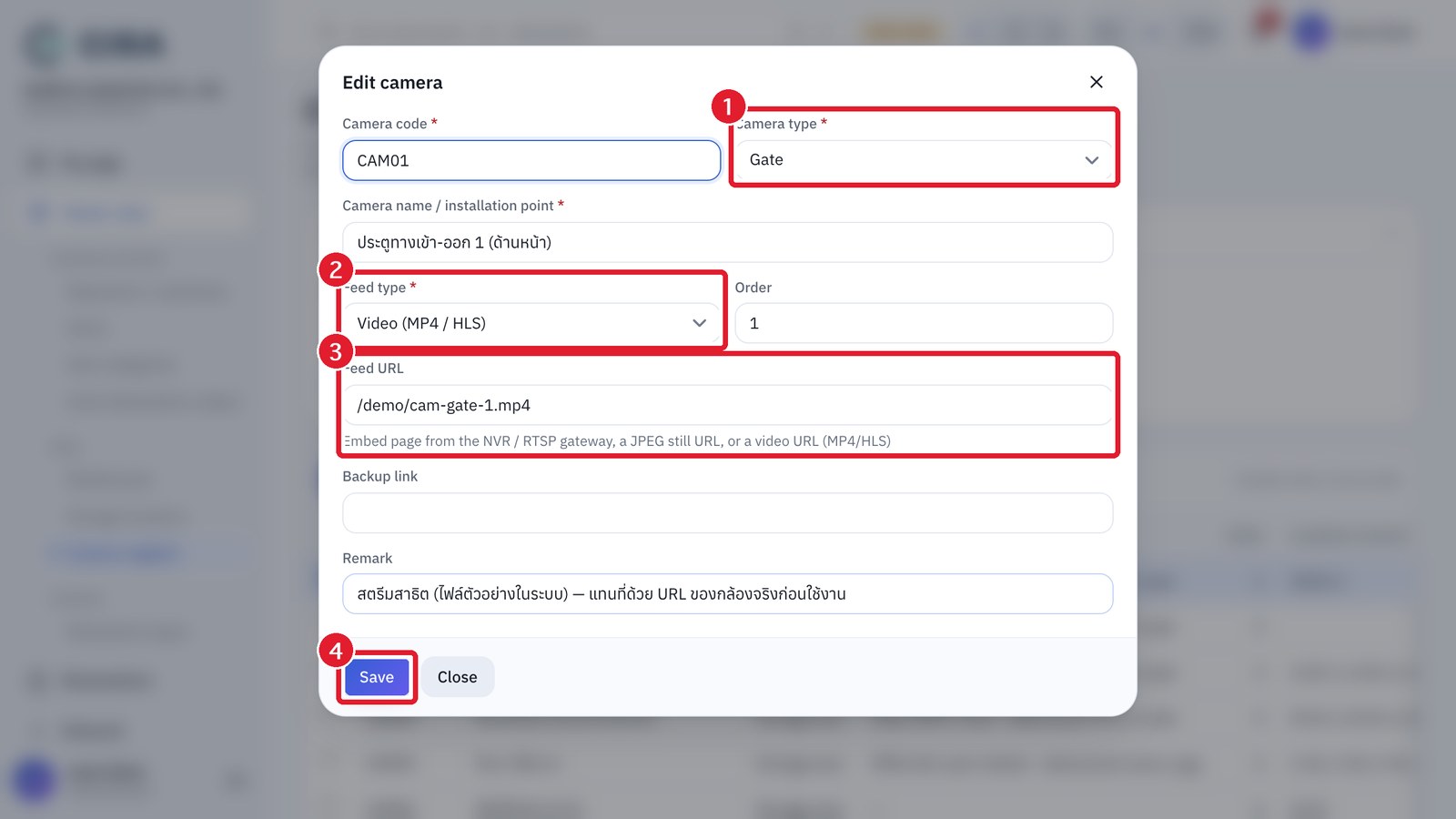
- A camera with no feed address yet shows "No feed address configured". People allowed to edit master data (Administrator, Warehouse manager, CS) can enter it at Master data › Camera register (feed types: embedded page, JPEG still refreshed every 5 seconds, or MP4/HLS video; the address must be HTTPS or a
/cam/…address of the system's camera gateway). - The warehouse's real cameras (such as Dahua WizSense) connect through a go2rtc gateway on site. The picture passes through the CIRA server and can be opened only by people who are signed in and allowed to view cameras (including customs officer accounts). Nobody can open a camera directly from the internet. In the camera register, enter the address
/cam/stream.html?src=cam01&mode=mse(live picture, embedded page type) or/cam/api/frame.jpeg?src=cam01(still picture), wherecam01is the camera code in lower case. - In the demo system, the pictures you see are generated sample clips (with the text "SAMPLE STREAM, NOT A REAL CAMERA" on the picture), not pictures of a real site.
Single-camera page
Snapshots
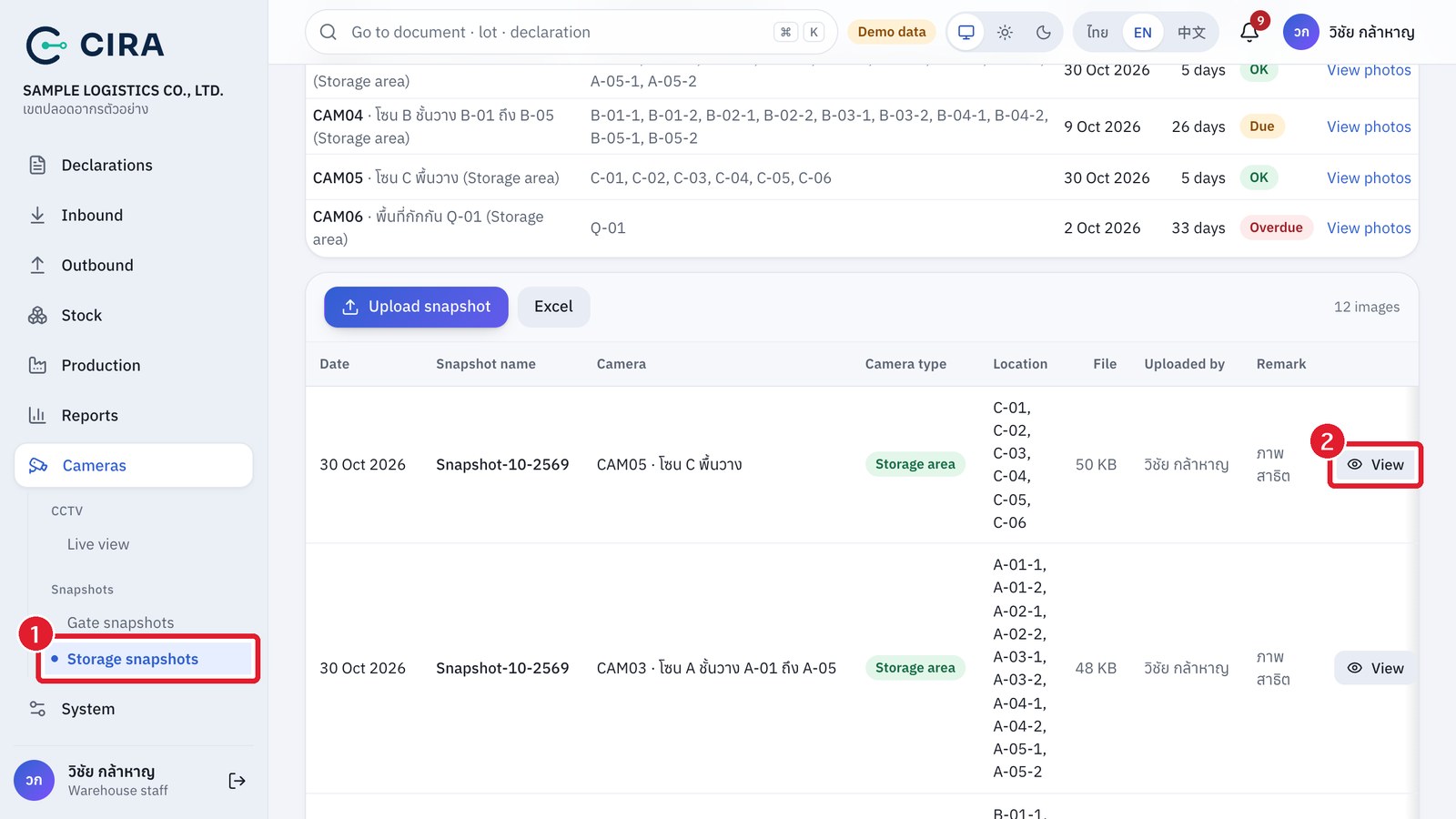
- Snapshots = dated photos of the premises (gates and storage areas), kept as evidence for officers to look back at, and named by month, such as Snapshot-10-2569. Filter by camera or date range. Export the list to Excel.
- From the balance report (FZ4), press View camera / View snapshot on the row of a storage location to go straight there.
- Taking a snapshot directly from a camera (warehouse staff, managers, administrators): the Take a snapshot now button on the single-camera page and Snapshot all cameras now on the snapshot page. The system pulls a still picture from the camera and saves it as that month's snapshot at once. A camera that does not respond is reported individually, and no broken file is left in the system.
- Scheduled automatic snapshots: every day at 10:00 the system checks and takes a picture from any camera whose latest photo (uploaded or automatic) has reached 25 days, so the photos of each camera are never more than 30 days apart, as Notification 22/2565 requires. Such a picture shows as taken by "System (automatic)", with the note "Taken automatically by the camera (on schedule)". On a day when a camera is not yet due, the system does not take another. Every capture is recorded in the audit log.
- The capture buttons and the scheduled capture start working only after IT has connected the real cameras. Until then, use the Upload snapshot button and watch the Latest photo status per camera table (section 2.7) so that no camera goes over 30 days.
Camera register